
OPX17 – Forecasts in Automic
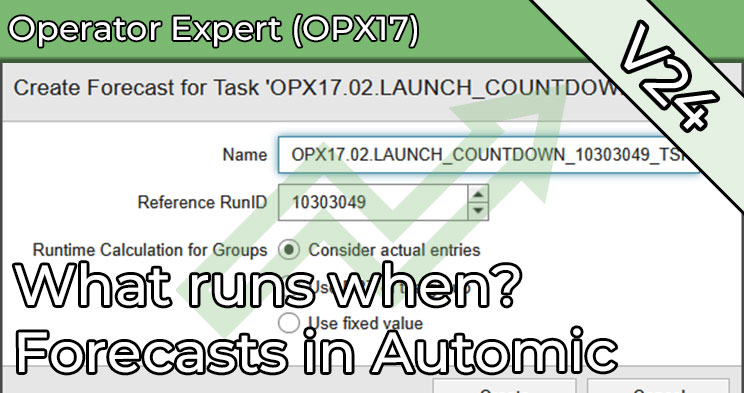
Understanding Automic Forecasts: Object, Task, and Autoforecast
How long is a workflow expected to run? When will an already active execution end? And which tasks are planned for the next period? In OPX17 you answer these questions with the forecasts (Forecasts) from Automic Automation. You work from an operator perspective in Process Monitoring and compare estimated values with actual runs.
Object Forecast: Take the logical start into account
An Object Forecast estimates a possible run without starting the object. The chosen logical start is part of the calculation: calendar conditions can cause a task to be considered on a weekday and omitted on the weekend. In the lab you therefore create two forecasts for the same workflow and compare the calculated runtimes.
Task Forecast: Assessing a running workflow
A Task Forecast refers to a concrete execution with RunID and start time. You read the calculated end, the calculated runtime and the expected status in the “Forecasts” view. Afterwards you compare the forecast with the actual end.
Autoforecast: Overview scheduled activities
The Autoforecast shows the expected automatic activations within the specified calculation period. For an active schedule you check whether the calculation is current, trigger a recalculation in the lab and read the planned tasks. You also learn why the time range and timeliness are important for interpreting the result.
What you learn in this Operator Lab
- Create Object Forecasts for different logical start times and recognize calendar effects.
- Match a Task Forecast to an active execution by its RunID.
- Read the calculated end, runtime and status in Process Monitoring and compare them with actual executions.
- Check the Autoforecast of a schedule and assess missing or outdated data.
Who is OPX17 for?
The course is aimed at advanced operators who monitor executions, evaluate estimates and follow up selectively when data or permissions are missing. All exercise objects are prepared in the Operator test lab so you can start the exercises immediately.
Learn Automic with PEM!
Would you like to learn more about Automic without having to travel across the country for workshops? At PEM, you decide when and how you want to continue your education! In interactive courses, tutorials and videos, you will learn everything you need to know about Automic – and more! And we are always there for you via comment function or email.
Does that sound interesting? Then get started today with PEM, Automic Training 2.0 and year-round Automic support!
FAQ about Automic Training on PEM
PEM is the most innovative and fastest growing Automic learning platform. It offers PEM members a comprehensive range of online training courses that can be accessed 24/7 and from anywhere. The platform includes dozens of videos and interactive courses and is aimed at beginners and professionals alike.
To meet different needs, PEM offers different types of content: courses, tutorials, learning paths, labs and tools.
- In the courses and tutorials you will learn everything about Automic in entertaining and interactive videos.
- The learning paths offer comprehensive training on a specific Automic topic. For example, the 11-part operator learning path is suitable for beginners. Are you already an Automic expert? Then you will definitely learn something with the database SQL learning path.
- Labs are automated environments that are available at the touch of a button and where what has been learned can be put into practice.
- Tools with appropriate instructions are regularly provided on PEM . This allows Automic processes to be automated and simplified even further.
In our library, you’ll find all content items currently available on PEM. And every week, we add more items to learn Automic.
PEM Labs are comprehensive, pre-configured Automic environments designed to provide users with a hands-on and immersive experience. These labs offer instant access to multiple Automic versions, allowing users to experiment with functionality and explore new features effortlessly. Available on demand and at no additional cost for members, PEM Labs eliminate the need for complex setups or extra expenses. Whether you’re a beginner or an experienced professional, they serve as realistic sandbox environments ideal for learning and experimenting with Automic.
Labs are provisioned on demand with a single click and are automatically deleted after 24 hours.
There are two different deployment-variants for the Labs:
- Labs for Operator and Designer
These provide access to a dedicated Automic Client via the Automic Web Interface (AWI). - Labs for Admins
These labs include OS-level access through a browser, enabling members to perform all administrative tasks, including those at the operating system level.
PEM Labs are available in three formats:
- Test Labs
These labs are empty Automic clients or systems that members can use for their experiments. - Course Labs
These labs include one or more scenarios where users are tasked with solving practical exercises, similar to classroom training sessions. - Story Labs
Story Labs are like Course Labs but incorporate a storyline to make the experience more engaging and entertaining. Think of them as small adventure games where you solve puzzles using Automic.
The Operator, Designer, and Admin roles in PEM align closely with the roles available within Automic itself. Each role is tailored to specific responsibilities, ensuring users focus on the skills and knowledge most relevant to their work:
- Operator:
Operators are responsible for monitoring, executing, and managing workflows in Automic. In PEM, the Operator role covers topics like workflow execution, troubleshooting, and day-to-day operations to ensure smooth automation processes. - Designer:
Designers are the architects of workflows and automation solutions in Automic. The Designer role in PEM includes content on creating, optimizing, and maintaining workflows and objects, with a focus on best practices for efficiency and scalability. - Admin:
Admins handle system-level configurations, user management, security settings, and advanced maintenance tasks in Automic. PEM’s Admin role offers in-depth training on system setup, troubleshooting, and managing complex environments, including OS-level access through PEM Labs.
By mirroring Automic’s role structure, PEM ensures that members can seamlessly apply what they learn to their actual responsibilities within the software, making the training practical and highly relevant.
We host live sessions called Solution Corners 12 times a year, offering direct interaction with our experts. These sessions are open for questions on any Automic topic, and members can submit questions in advance for a more in-depth discussion.
Additionally, we provide online consulting—exclusive video conference sessions with our Automic specialists. Members with a consulting quota can book appointments directly via the experts’ calendars, ensuring flexible and personalized support.
In normal Automic training courses, the trainer is available to you for a few days. If you’re lucky, you might be able to provide input before the training, and if you’re particularly lucky, you might be able to ask 1-2 questions in the weeks following the training.
Our members can send us an email at any time. We answer questions immediately by email. If our members have questions about specific topics, they can also use the comment function. We call this “year-round Automic support”.
You always sign up for a membership for one year. After that, it is usually renewed automatically.
You can cancel at any time up to one month before the end of the contract with a simple email. Of course, you can limit the membership to one year at the beginning of the contract.