
Automic Concierge 🛎️
Central contact point & support for members
We are here for you! Personal support and advice is a top priority at PEM Automic!
Below you will find several ways to get in direct contact with us. We look forward to hearing from you!
🛟 Support
Do you need support or do you have any questions?
Then write us an email or fill out the form below.
You may also find the answer in our FAQ section, where we have provided direct answers to many frequently asked questions.
"*" indicates required fields
💡 Feedback / Ideas / Comments
Do you have feedback on PEM or a specific piece of content?
Or ideas on how to make PEM even better in the future?
Then please let us know using the form below.
If you have feedback or a question about a specific post, you can also let us know directly in a comment below the content.
"*" indicates required fields
Solution Corners & Events
Here you’ll find announcements for upcoming Soluction Corners (live sessions) and events. During our live sessions, you can ask questions on any Automic-related topic. Your question will be answered and discussed live. We look forward to seeing you!
Nothing to see here yet. Stay tuned!
🎯 Book Consulting
We are happy to assist you with your individual needs through our personalised consulting. Enterprise members can book hourly consulting sessions directly in our consultants’ calendars. This gives you easy and flexible support for all your Automic-related questions.
Members without an Enterprise membership can also purchase consulting hours. We also offer convenient hourly packages that you can use to top up your credit.
❓ FAQ for using PEM Automic
In this technical FAQ, you will find answers to frequently asked questions and known issues that may arise when working with the PEM Automic platform, videos and PEM Labs. We want to proactively support you so that you can quickly find a solution to technical hurdles and continue working without interruption.
The FAQ is updated regularly, so it is worth checking back here periodically as needed. If your issue is not listed here, please contact us via the support form or directly via email so that we can update or expand the FAQ.
Videos & Media
How to recognize it:
- Message “unable to decode media”
- Message “Video Format not Supported”
- Message “Network failure”
- Video does not start or stops unexpectedly
How to fix it:
- Reload the page (shortcut: Ctrl + R or F5).
- If that doesn’t help: Open the same URL in a new browser tab – this often solves the “Network failure” issue.
- If that doesn’t help: Close your browser completely and reopen it.
- Check if your network blocks access to Vimeo (e.g., in corporate environments).
- If you are on a company network: Ask your IT team to allow Vimeo through the firewall.
Background:
Our videos are hosted on Vimeo. Some corporate networks block external video platforms by default for security or privacy reasons.
Possible causes:
- Slow internet connection
- VPN connection with high data traffic
- Overloaded Wi-Fi network
Solutions:
- If possible, switch from Wi-Fi to a wired LAN connection.
- Close all tabs or applications using a lot of bandwidth (e.g., cloud sync tools, video calls).
- Disable your VPN if it’s not required.
- Clear your browser cache (see point 18).
Possible causes:
In highly restrictive corporate networks, our training videos may sometimes be blocked. This is usually due to strict firewall or proxy settings that prevent access to the delivery servers of our video host (Vimeo).
Solution:
Please contact your IT department and ask them to add the following domains (including all subdomains) to your company’s “whitelist”:
*.vimeo.com*.vimeocdn.com*.akamaized.net
Background:
These addresses belong to Vimeo’s Content Delivery Network (CDN). The actual video data is streamed through these servers. Without this authorization, the player cannot retrieve the content.
Check first:
- Is the volume enabled in the Vimeo player? (speaker icon at the bottom right of the video)
- Is your computer or connected monitor/headphone volume high enough?
- Is the browser tab muted? (in Chrome, a crossed-out speaker icon indicates this)
If there’s still no sound:
- Switch to another output device (e.g., from monitor speakers to headphones).
- Restart your browser.
- Try the video in another browser.
How to do it:
- Start the video.
- Click the CC icon (Closed Captions) in the player.
- Choose your preferred language or disable subtitles.
Note: Not all videos include subtitles.
Meaning:
The video is restricted to be played only on specific websites.
How to fix it:
- Make sure you are accessing the video via the PEM platform, not an external link.
- If you are on a company network: Ask IT to whitelist Vimeo in the browser or firewall.
Labs & Guacamole
Chrome:
- Click the padlock icon left of the address bar.
- Find “Clipboard” and set it to Allow.
- Reload the page.
Firefox:
- On the first copy/paste attempt, confirm the permission prompt.
- If not shown: Open site permissions and set “Clipboard” to Allow.
Alternative (all browsers):
- In the Guacamole sidebar, you’ll find a clipboard field. You can paste text there, and it will become available in the Lab environment.
Tip: Screenshots with detailed steps are available in the extended guide.
Problem:
If you try to type a character like the pipe symbol |, Alt Gr doesn’t work.
Solution:
Use Ctrl + Alt instead of Alt Gr.
Background:
Some remote connections (like Guacamole) don’t interpret the Alt Gr key correctly.
Press Ctrl + Alt + Shift at the same time to toggle the Guacamole settings sidebar on or off.
Status:
Direct file uploads are currently not supported.
Workaround:
- Open the file locally on your computer (e.g., XML or TXT).
- Copy the entire content (Ctrl + A, then Ctrl + C).
- Paste it via the Guacamole clipboard into the target system.
How to fix it:
- In the Lab, open your keyboard settings (Control Panel or OS settings).
- Select the correct layout (e.g., German (Germany) or German (Switzerland)).
- If necessary, also check your local system to ensure the correct layout is active.
Cause:
Slow or unstable network connection.
Solution:
- Switch from Wi-Fi to LAN if possible.
- Close background apps using bandwidth (e.g., cloud backups).
Possible reasons:
- Inactivity (session timeout)
- Internet interruption
- Browser crash
Solution:
- Reconnect to the session.
- Save your work regularly to avoid data loss.
Cause:
Browser extensions or corporate policies.
Solution:
Temporarily disable all extensions or try a different browser.
Error message:/bin/sh: 1: /opt/agent-unix/temp/JAAOFOHZ.TXT.sh: Permission denied
Cause:
A bug in the agent container.
Solution:
Reorder the lab.
PEM Automic Platform
Cause:
Browser is blocking cookies or local storage.
Solution:
- Allow cookies.
- Clear your browser cache.
- Try another browser if needed.
Cause:
Pop-up blocker active or course not fully completed.
Solution:
- Disable your pop-up blocker.
- Check if all lessons are marked as “completed.”
Solution:
- Use the password reset option on the login page.
- Make sure your login credentials are valid across the entire PEM platform.
Example screenshot:
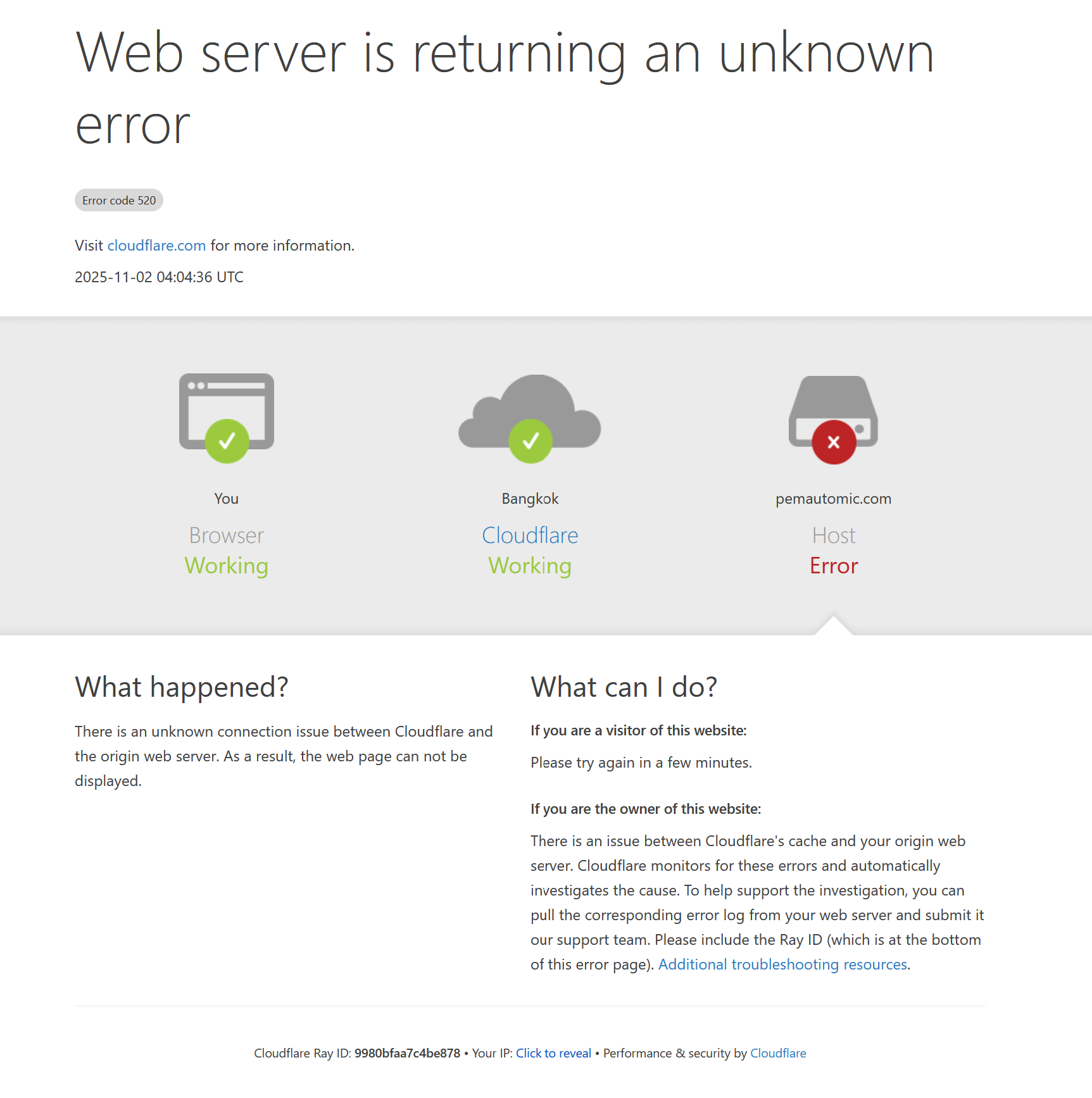
Cause:
There may be various causes for this, but they fall within the provider’s (i.e. PEM’s) area of responsibility. We apologise for the inconvenience!
Solution:
- Refreshing the page usually helps. Or several refreshes. Unfortunately, sometimes you will need to refresh many times.
- Sometimes the error occurs frequently over a period of a few minutes – grab a coffee or another beverage of your choice and try again afterwards.
- If the error occurs frequently over a longer period of time (more than 10 minutes), please send us a short email to support@philippelmer.com. We will of course buy you your next coffee as a small gesture of goodwill!
General Technical Tips
Chrome:
Menu → More Tools → Clear browsing data → select “Cached images and files” → Delete.
Firefox:
Menu → Settings → Privacy & Security → Cookies and Site Data → Clear Now.
Edge:
Menu → Settings → Privacy, Search, and Services → Clear browsing data.
Recommended: Latest version of Chrome or Firefox.
Not recommended: Internet Explorer or outdated browsers.
Internet speed: Minimum 10 Mbit/s, recommended 25 Mbit/s or more
Supported browsers: Latest versions of Chrome and Firefox
Operating systems: Current, officially supported versions of Windows or macOS