
Solution Corner #37: Automation AI V26 – Installation and Configuration (Recording)
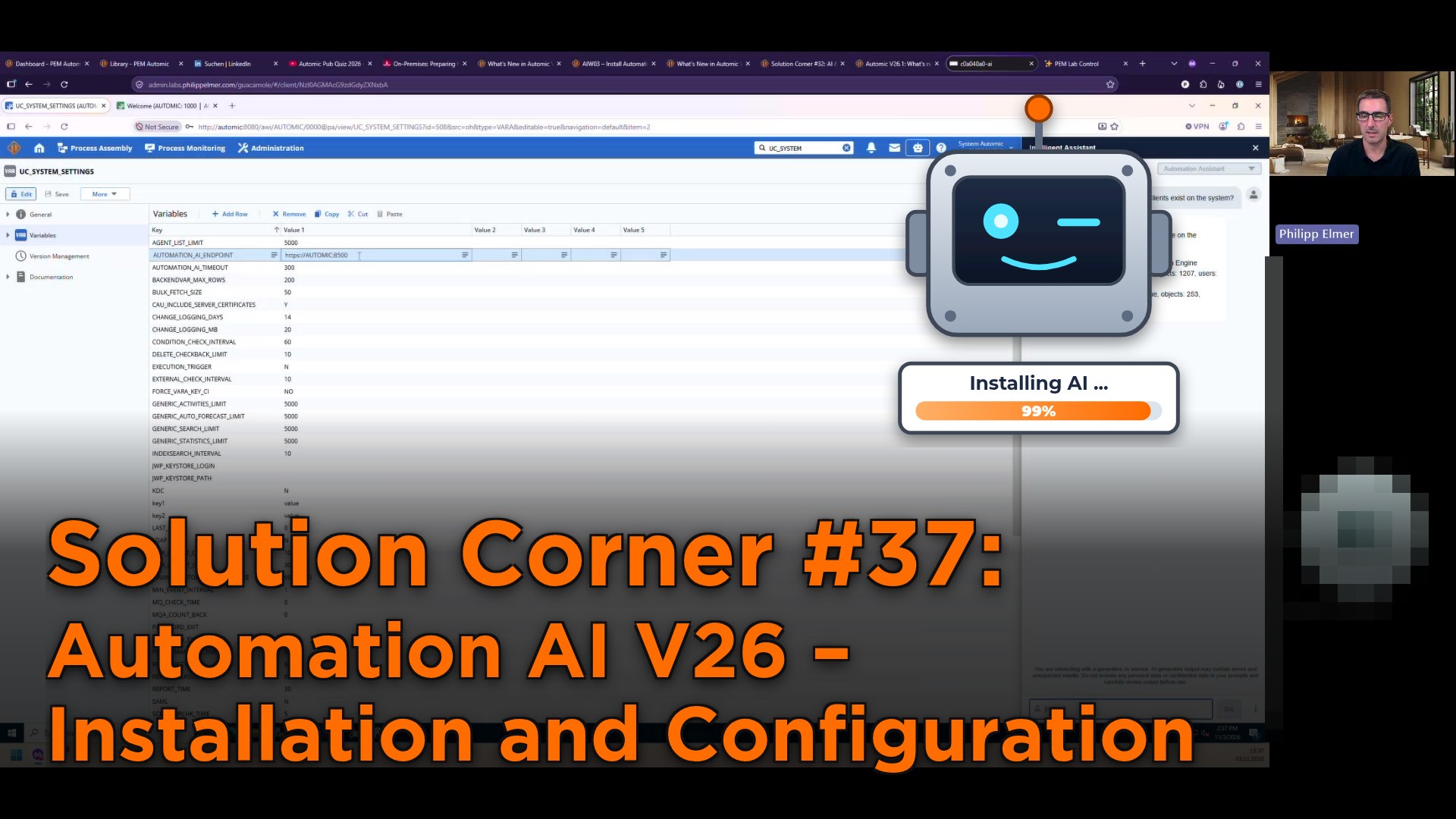
Installing and Configuring Automation AI V26
With Version 26, a lot has changed around Automation AI: a dedicated PostgreSQL database, MCP support, encrypted passwords and multiple instances for high availability. In this Solution Corner recording, we install Automation AI step by step on an Automic Automation V26.1 lab on Windows: from an empty database to the first answer in the Automation Assistant.
Starting point: a V26.1 lab without Automation AI
Without Automation AI, the Automation Assistant in the AWI answers with an error, and ASK_AI, AI jobs and the AI analyses in the AWI do not work either. The AWI log names the cause: "Automation AI endpoint not configured". From there, we set up the component following the instructions in the Broadcom TechDocs 26.1.
The installation step by step
- Dedicated database: Since V26, Automation AI stores chat histories and data in its own PostgreSQL database. The script setup_db.psql from the package creates the user and the database; the tables appear on the first start.
- application.properties: Port 8500 because the AWI already uses 8080, HTTPS with a certificate and a private key, the database connection and the LLM provider. The provider openai also serves OpenRouter; new in 26.1, Amazon Bedrock Converse is available as well.
- Encryption: With automation.ai.encryption, the component encrypts all passwords and API keys in application.properties on its first start and stores the key in properties.key.
- ServiceManager: Automation AI starts with java -jar automation-ai-launcher.jar as an entry in the ServiceManager.
- Connecting the Automation Engine: The engine finds the component through AUTOMATION_AI_ENDPOINT in UC_SYSTEM_SETTINGS on client 0. UC_AI_PROMPTS holds the system prompts behind the analysis actions in the AWI, UC_AI_CONFIRMATION adds to the disclaimer that every user confirms once.
MCP: the AE REST API and external MCP servers as tools
Automation AI reads the Swagger description of the AE REST API and offers it to the model as tools. The OneInstaller puts sendAiChatMessage on the block list, so that the component does not call itself in an endless loop. We then connect the public Microsoft Learn MCP server with two entries in application.properties and compare an AI job with and without this tool: with the tool, it lists current known issues; without it, it says it has no live web access.
Testing and high availability
After the installation, we test the Automation Assistant, the script function ASK_AI and Analyze Execution. Finally, a second instance with its own port joins on the same database. It needs the same properties.key, and according to the documentation, several endpoints in AUTOMATION_AI_ENDPOINT are a failover, not load balancing.
Topics in this recording
- What is Automation AI, and what is new in V26?
- Creating the database with setup_db.psql
- application.properties: port, TLS, LLM provider and database
- MCP with the AE REST API as a tool source
- Start in the ServiceManager and connection in UC_SYSTEM_SETTINGS
- Testing with the Automation Assistant, ASK_AI and Analyze Execution
- External MCP server: Microsoft Learn
- High availability with a second instance
Do you want to set up Automation AI in your own Automic environment on V26? This recording shows you the whole way in a lab. For hands-on practice, PEM offers the labs AIW03 (Windows) and AIU03 (Linux) on V24.4.
Learn Automic with PEM!
Would you like to learn more about Automic without having to travel across the country for workshops? At PEM, you decide when and how you want to continue your education! In interactive courses, tutorials and videos, you will learn everything you need to know about Automic – and more! And we are always there for you via comment function or email.
Does that sound interesting? Then get started today with PEM, Automic Training 2.0 and year-round Automic support!
FAQ about Automic Training on PEM
PEM is the most innovative and fastest growing Automic learning platform. It offers PEM members a comprehensive range of online training courses that can be accessed 24/7 and from anywhere. The platform includes dozens of videos and interactive courses and is aimed at beginners and professionals alike.
To meet different needs, PEM offers different types of content: courses, tutorials, learning paths, labs and tools.
- In the courses and tutorials you will learn everything about Automic in entertaining and interactive videos.
- The learning paths offer comprehensive training on a specific Automic topic. For example, the 11-part operator learning path is suitable for beginners. Are you already an Automic expert? Then you will definitely learn something with the database SQL learning path.
- Labs are automated environments that are available at the touch of a button and where what has been learned can be put into practice.
- Tools with appropriate instructions are regularly provided on PEM . This allows Automic processes to be automated and simplified even further.
In our library, you’ll find all content items currently available on PEM. And every week, we add more items to learn Automic.
PEM Labs are comprehensive, pre-configured Automic environments designed to provide users with a hands-on and immersive experience. These labs offer instant access to multiple Automic versions, allowing users to experiment with functionality and explore new features effortlessly. Available on demand and at no additional cost for members, PEM Labs eliminate the need for complex setups or extra expenses. Whether you’re a beginner or an experienced professional, they serve as realistic sandbox environments ideal for learning and experimenting with Automic.
Labs are provisioned on demand with a single click and are automatically deleted after 24 hours.
There are two different deployment-variants for the Labs:
- Labs for Operator and Designer
These provide access to a dedicated Automic Client via the Automic Web Interface (AWI). - Labs for Admins
These labs include OS-level access through a browser, enabling members to perform all administrative tasks, including those at the operating system level.
PEM Labs are available in three formats:
- Test Labs
These labs are empty Automic clients or systems that members can use for their experiments. - Course Labs
These labs include one or more scenarios where users are tasked with solving practical exercises, similar to classroom training sessions. - Story Labs
Story Labs are like Course Labs but incorporate a storyline to make the experience more engaging and entertaining. Think of them as small adventure games where you solve puzzles using Automic.
The Operator, Designer, and Admin roles in PEM align closely with the roles available within Automic itself. Each role is tailored to specific responsibilities, ensuring users focus on the skills and knowledge most relevant to their work:
- Operator:
Operators are responsible for monitoring, executing, and managing workflows in Automic. In PEM, the Operator role covers topics like workflow execution, troubleshooting, and day-to-day operations to ensure smooth automation processes. - Designer:
Designers are the architects of workflows and automation solutions in Automic. The Designer role in PEM includes content on creating, optimizing, and maintaining workflows and objects, with a focus on best practices for efficiency and scalability. - Admin:
Admins handle system-level configurations, user management, security settings, and advanced maintenance tasks in Automic. PEM’s Admin role offers in-depth training on system setup, troubleshooting, and managing complex environments, including OS-level access through PEM Labs.
By mirroring Automic’s role structure, PEM ensures that members can seamlessly apply what they learn to their actual responsibilities within the software, making the training practical and highly relevant.
We host live sessions called Solution Corners 12 times a year, offering direct interaction with our experts. These sessions are open for questions on any Automic topic, and members can submit questions in advance for a more in-depth discussion.
Additionally, we provide online consulting—exclusive video conference sessions with our Automic specialists. Members with a consulting quota can book appointments directly via the experts’ calendars, ensuring flexible and personalized support.
In normal Automic training courses, the trainer is available to you for a few days. If you’re lucky, you might be able to provide input before the training, and if you’re particularly lucky, you might be able to ask 1-2 questions in the weeks following the training.
Our members can send us an email at any time. We answer questions immediately by email. If our members have questions about specific topics, they can also use the comment function. We call this “year-round Automic support”.
You always sign up for a membership for one year. After that, it is usually renewed automatically.
You can cancel at any time up to one month before the end of the contract with a simple email. Of course, you can limit the membership to one year at the beginning of the contract.